

Prompting for game art
Describe sprites, edits, animation, and tiles with constraints that fit your game.
A useful image prompt describes one asset and the constraints that make it usable in your game. Choose the matching action, asset type, size, style, and background in Image Studio before writing the prompt.
Start with the asset's job
Use this order: subject → viewpoint → silhouette → colors → constraints. Keep the main request clear instead of adding a long list of unrelated styles.
For example:
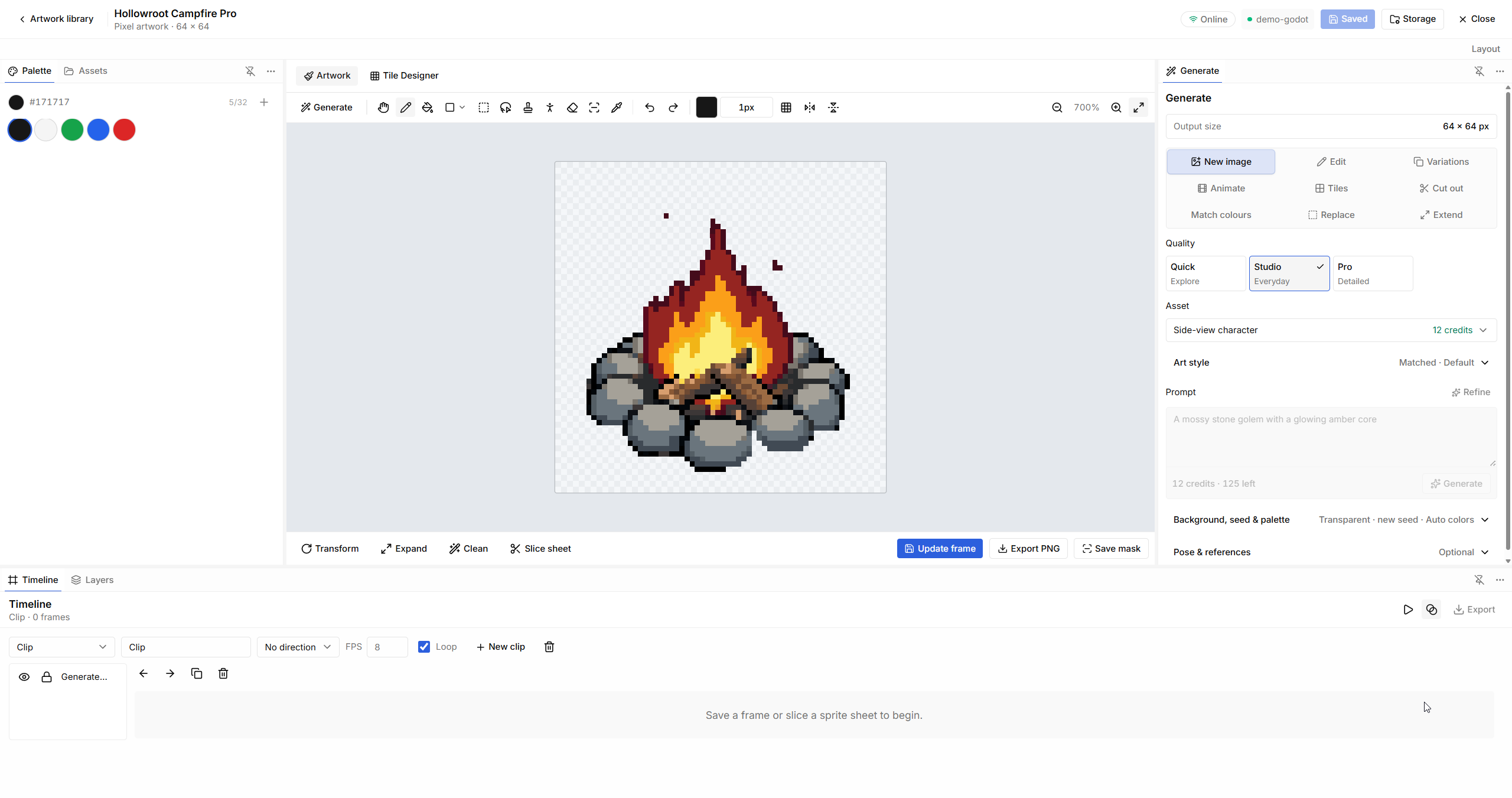
A small campfire prop for a side-view woodland game. Three crossed logs inside a low ring of gray stones, a compact amber flame, and a clear silhouette. Limited warm palette, hard pixel edges, centered with space around the object. No ground, text, or extra props.
Choose a square prop-sized canvas and enable a transparent background in the app. The prompt describes the art; the settings choose its output format.
Be specific about viewpoint
“Game character” leaves many choices open. Say whether the sprite is side-view, top-down, isometric, or a portrait. Add facing direction and framing when they matter.
A full-body woodland adventurer facing right in a relaxed standing pose. Green tunic, brown boots, small backpack, warm brown hair. Side-view pixel sprite with readable hands and feet, centered, with no ground shadow.
Keep the viewpoint consistent across assets meant for the same scene. Use references when you want an existing character's appearance preserved.
Ask for one change at a time
For Edit, explain the change first, then name what must remain:
Change the tunic from green to deep blue. Preserve the face, hair, proportions, pose, backpack, outline, and transparent background.
Use Replace with a selection or mask when the change is confined to one area. Use Variations when you want alternatives rather than an exact edit. If the result changes too much, narrow the request and review the strength control where the chosen action offers one.
Keep a set visually consistent
- Reuse a clear description of the viewpoint, outline, and shading.
- Select references that match the subject and style you want.
- Use the palette controls when a specific color set matters.
- Compare outputs at their intended in-game size.
- Change one major setting at a time while exploring.
For Match colours, pick a reference that represents the target palette. It is easier to match a cohesive asset than a busy collage of unrelated styles.
Describe motion, not every frame
Choose Animate and the suitable motion or animation format. State the direction, action, and features that should stay fixed.
A gentle looping idle for this moss slime. Small vertical squash and stretch, with the moss and crystal staying attached. Keep the base in place, the silhouette recognizable, and the camera fixed.
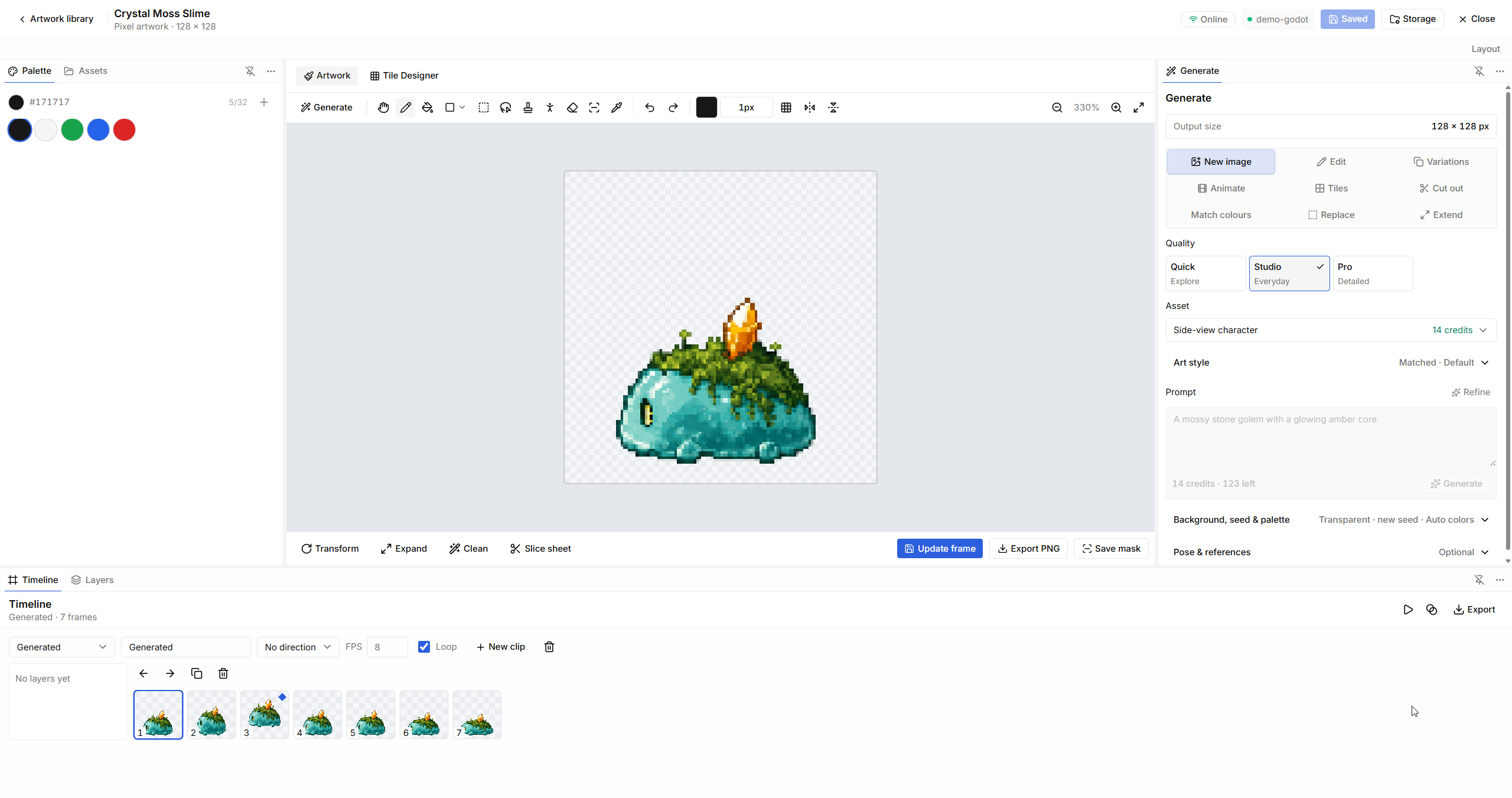
For a walk cycle, specify the direction and whether it should walk in place. Avoid asking for several actions in a single clip. Use the app's frame and animation controls where offered, then check the result before export.
Prompt tiles as repeating surfaces
Choose the tile format before describing the texture. A seamless ground texture should cover the tile; an isolated prop should not.
Top-down mossy cobblestone ground. Small warm-gray stones with narrow irregular gaps and restrained green moss. Even lighting, no cast shadows, no border, no central focal object, matching edges for repetition.
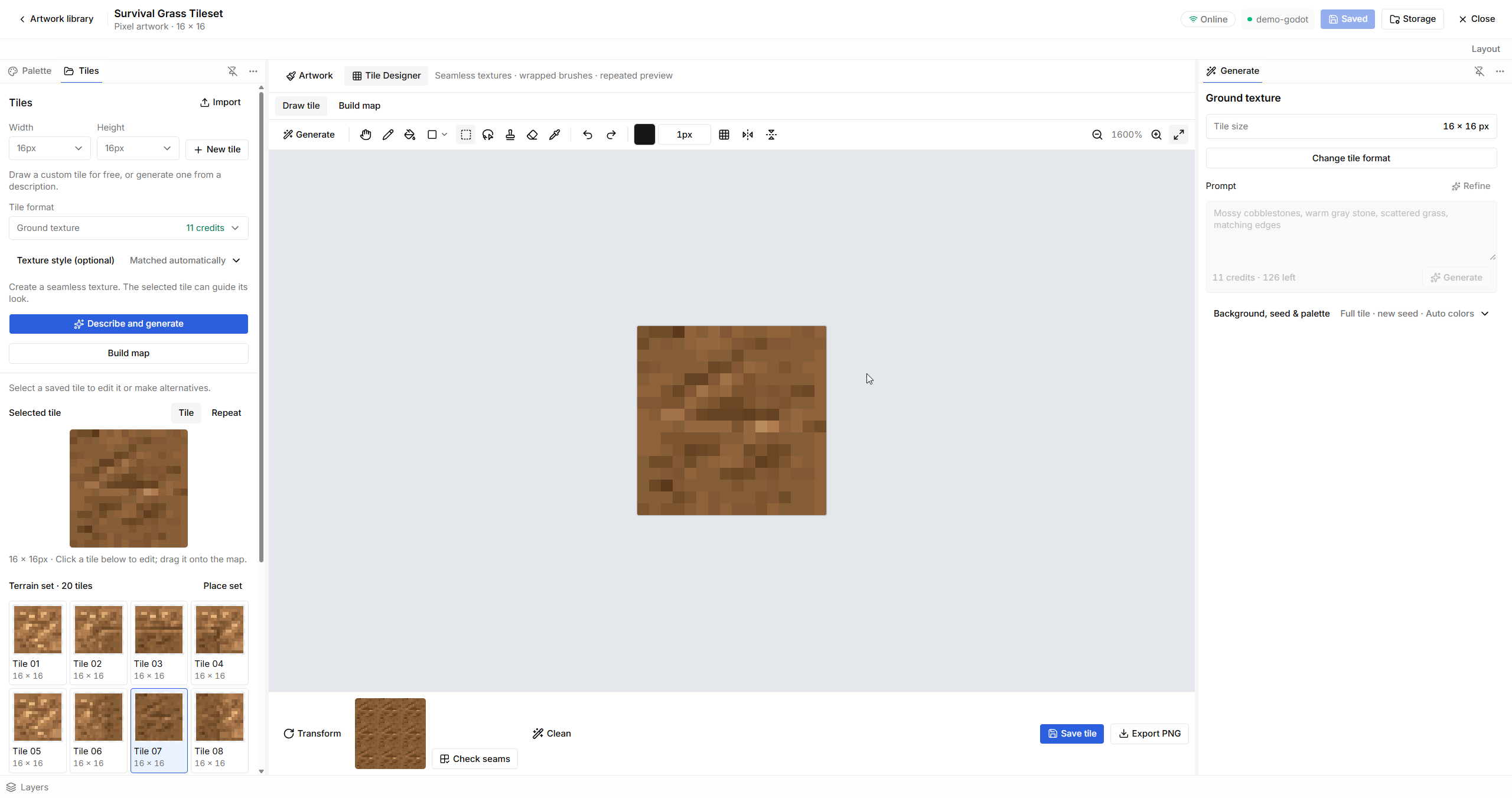
If a tile looks good alone but forms obvious stripes when repeated, reduce large directional shapes and strong contrast near its edges.
Use quality and Refine deliberately
Start with Quick to explore a subject. Use Studio for everyday asset work, or Pro when the selected task needs its styles or reference options. A higher quality option does not fix a contradictory request.
Refine can suggest more descriptive wording. Review the revised prompt: keep useful detail, remove extra objects, and retain your viewpoint and palette constraints. Check the updated quote before generating.
Fix common problems
| Result | What to adjust |
|---|---|
| Too much detail | Simplify the silhouette and palette; remove secondary objects. |
| Wrong angle | Name the viewpoint and facing direction; use a matching reference. |
| Background included | Select transparency for an isolated asset and exclude ground or scenery. |
| Edit changes the whole image | Narrow the change, name preserved details, or mask the target area. |
| Animation drifts | Ask for a fixed camera and stationary base, then inspect alignment in Timeline. |
| Tiles show a grid | Use even lighting, matching edges, and fewer strong edge features. |
Save promising results before further experiments. Local drawing, cleanup, and frame editing are often the simplest way to finish the last few pixels.