

Image Studio
Learn the artwork tools, image actions, animation timeline, Tile Designer, and export options.
Image Studio is the Pro workspace for creating and preparing game art. You can draw on a blank canvas, import existing images, generate new artwork, animate sprites, and design tiles.
Open Image Studio from the desktop app. Your artwork library is stored on your computer. Godot does not need to be running for local editing.
Find your way around
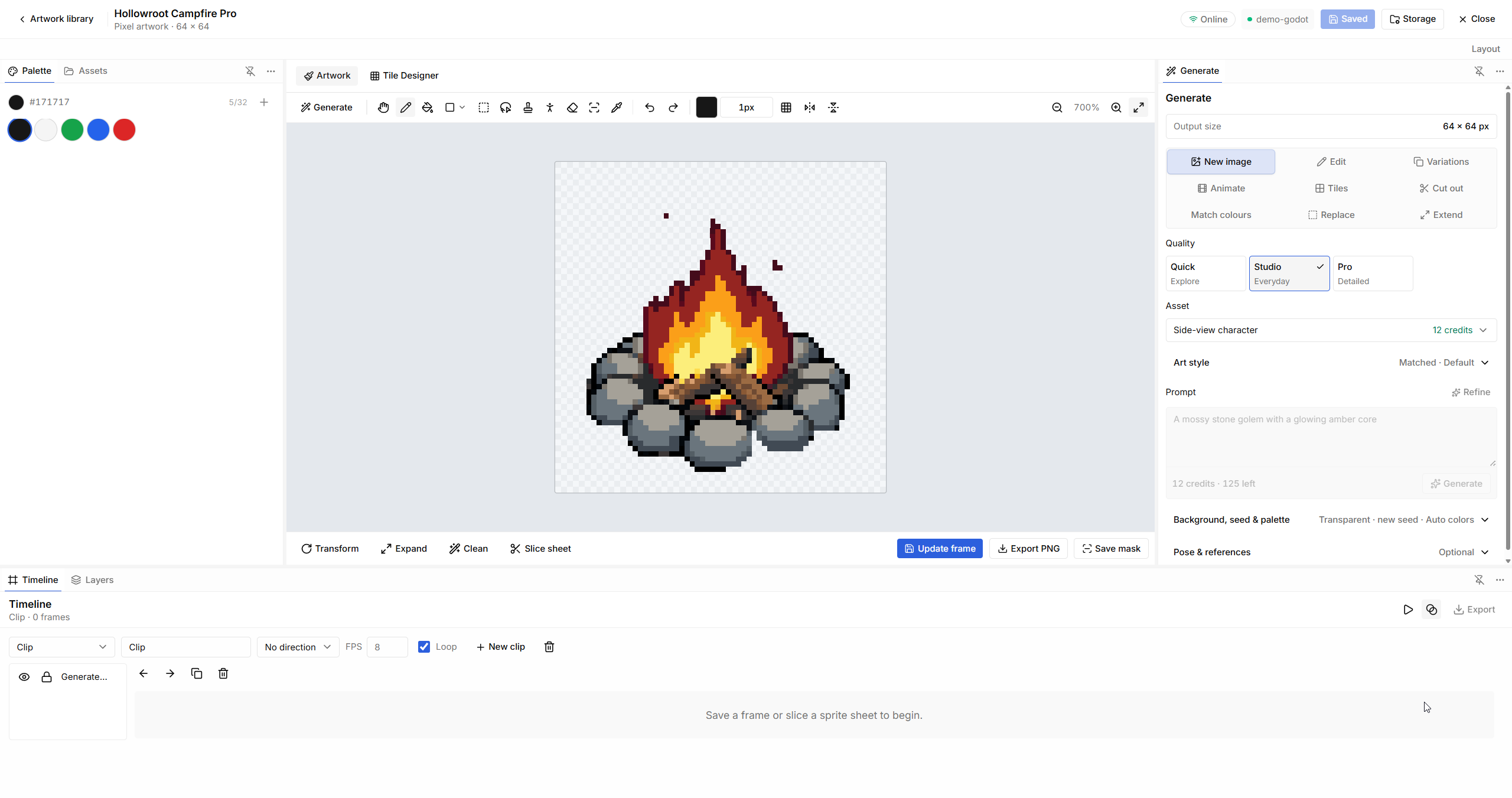
| Area | What it is for |
|---|---|
| Artwork library | Create, reopen, rename, and organize artwork. |
| Palette | Pick, sample, and manage the colors used while drawing. |
| Assets | Import source images and select files to work on. |
| Artwork | Draw and edit the current canvas. |
| Tile Designer | Work with individual tiles, repeating textures, and maps. |
| Generate | Choose an image action, its settings, and a prompt. |
| Timeline | Save frames, organize animation clips, and preview playback. |
| Layers | Manage the layers that make up your artwork. |
Panels can be docked, resized, or hidden. On smaller windows, open the side panels when you need them to keep more room for the canvas.
Create or import artwork
In the library, enter an Artwork name, choose a Canvas size, and select Create artwork. New artwork uses pixel mode. Pick a size that suits the asset's intended role; a small prop usually needs less detail than a portrait.
To edit an existing file, open Assets and choose Import images. Select the imported asset to load it onto the canvas. An imported image fits the artwork's canvas size, so check its proportions and fine details after loading.
Importing images and working with local tools do not use generation credits.
Draw and edit
Use the pencil, eraser, fill, shapes, selection tools, and color picker to change the canvas directly. Work zoomed in for individual pixels, then zoom out to check the asset's silhouette at its intended display size.
- Transform rotates, flips, or resizes the artwork.
- Expand changes the canvas bounds.
- Clean provides cleanup tools for preparing an asset.
- Slice sheet separates a sprite sheet into frames.
- Add frame saves the canvas into the timeline.
- Update frame saves changes to the frame you are editing.
- Export PNG saves the current image as a PNG.
- Save mask exports the current mask for reuse.
Useful shortcuts include B for pencil, E for eraser, I for color picker, and Space + drag to pan. Ctrl/Cmd Z undoes a change; Ctrl/Cmd Shift Z or Ctrl/Cmd Y redoes it. Ctrl/Cmd S saves the frame.
Choose an image action
The Generate panel changes its controls to match the action you select. Some actions need an existing image, selection, or mask.
| Action | Use it when |
|---|---|
| New image | You want a new asset from a description. On an empty canvas, this may be labeled Image. |
| Edit | You want to change existing art while keeping the parts you describe. |
| Variations | You want alternatives based on an existing image. |
| Animate | You want motion or an animation set from a character, prop, or effect. |
| Tiles | You want tile-specific generation options. |
| Cut out | You want to remove the background around a subject. |
| Match colours | You want an image to fit another asset's colors or visual style. |
| Replace | You want to replace a selected or masked part of the artwork. |
| Extend | You want new artwork beyond the current image edges. |
For a focused edit, say what should change and what should stay the same. For a new image, describe the asset, viewpoint, silhouette, colors, and background. See Prompting for game art.
Quality, size, and style
| Setting | How to choose |
|---|---|
| Quick | Explore ideas and compare simpler variations. |
| Studio | Create everyday game assets with a wider choice of art styles. |
| Pro | Work on more detailed or reference-guided artwork. It supports multiple references and pose guides. |
| Asset | Choose the kind of image you are making, such as a character, prop, portrait, or texture. |
| Output size | Match the asset's intended use. Available sizes depend on the selected options. |
| Art style | Choose a visual treatment appropriate to the asset and your game. |
The Pro quality option is an image-generation setting. The Pro edition is the desktop product that includes Image Studio. Check the quote for the chosen operation; quality, size, and other options can affect its credit cost.
Background, palette, and references
Use Background, seed & palette to choose transparency, a seed, and color constraints where available. Set a transparent background for an isolated sprite or prop. A ground texture normally fills its whole tile.
A seed can help compare changes while keeping other settings fixed. It is not a guarantee that different actions or settings will produce identical art.
Use Pose & references when a subject's identity, appearance, or pose matters. Choose a small set of relevant references and describe which parts to preserve. The available reference and pose options depend on the selected quality and action.
Refine can help expand your prompt. Read the revised text before generating and remove anything that does not fit your game.
Review and save a generation
- Choose the action and settings.
- Write the prompt and select only the images or masks needed for the request.
- Review the credit quote before submitting.
- Inspect the result on the canvas and at its intended display size.
- Save the result you want to keep, then make any local edits.
Requests proposed by your AI assistant appear in Approvals in the desktop app. Review their settings and cost before approving them. If you enable MCP auto-approval, check which requests it covers and the limits you set.
Closing Image Studio after a request starts does not cancel that generation. Reopen the artwork to find its result. The Generations page also provides access to recent results.
Animate sprites
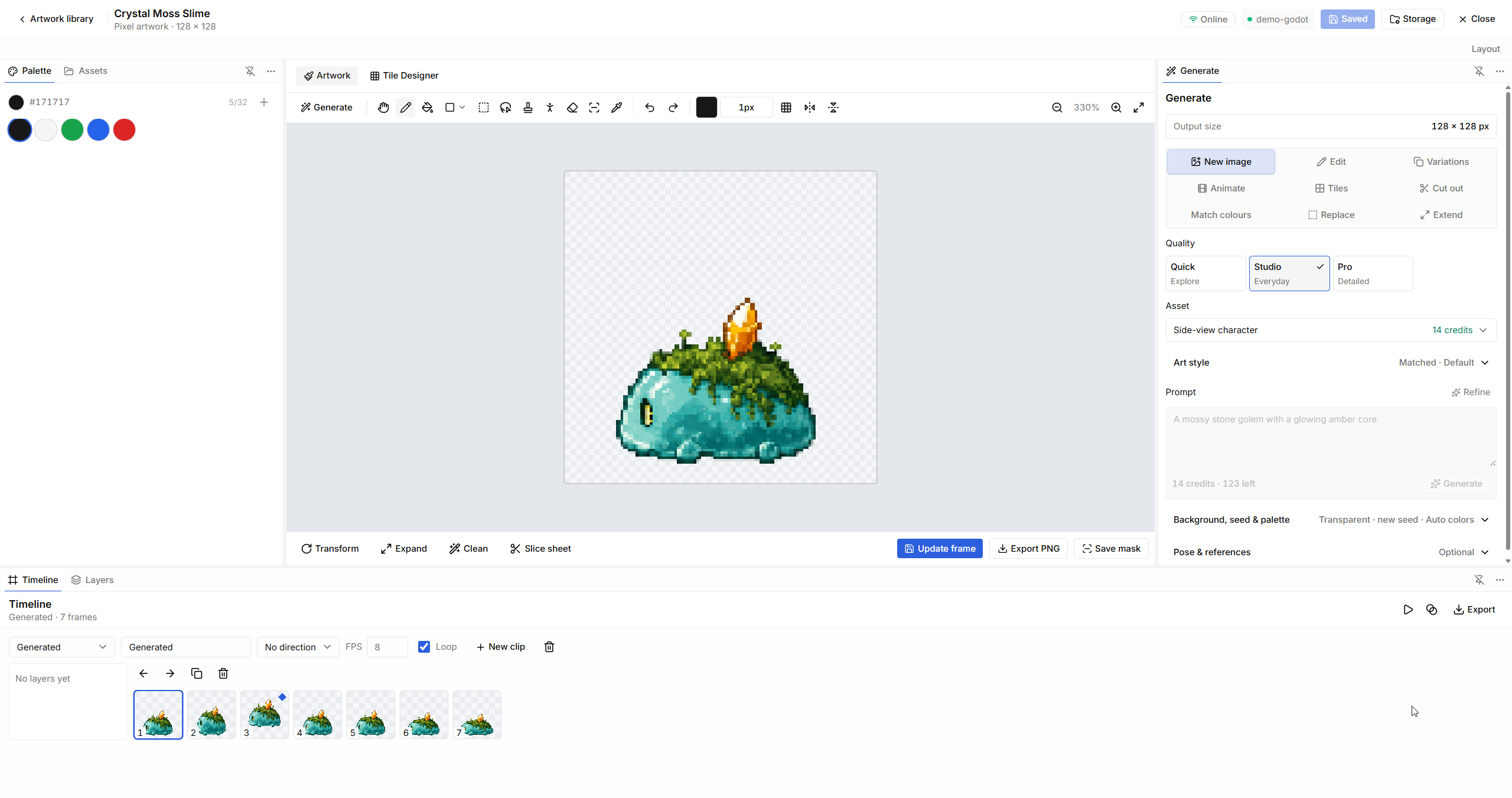
A clip groups frames into an animation. Give clips useful names such as idle, walk_east, or attack, then set their direction, frame order, FPS, and Loop option.
Use playback and onion skinning to find jumps between frames. Check that the feet or base of the sprite stay aligned, the character keeps its proportions, and the final frame returns naturally to the first when looping.
You can import frames, save edits into a clip, slice a sheet, or use Animate to generate motion. Local frame editing and playback use no generation credits; generated animation has its own quote.
Pose and rigging tools help arrange supported artwork with bones, joints, and pose keys. They do not add movement scripts or gameplay behavior to a Godot character.
Design tiles and maps
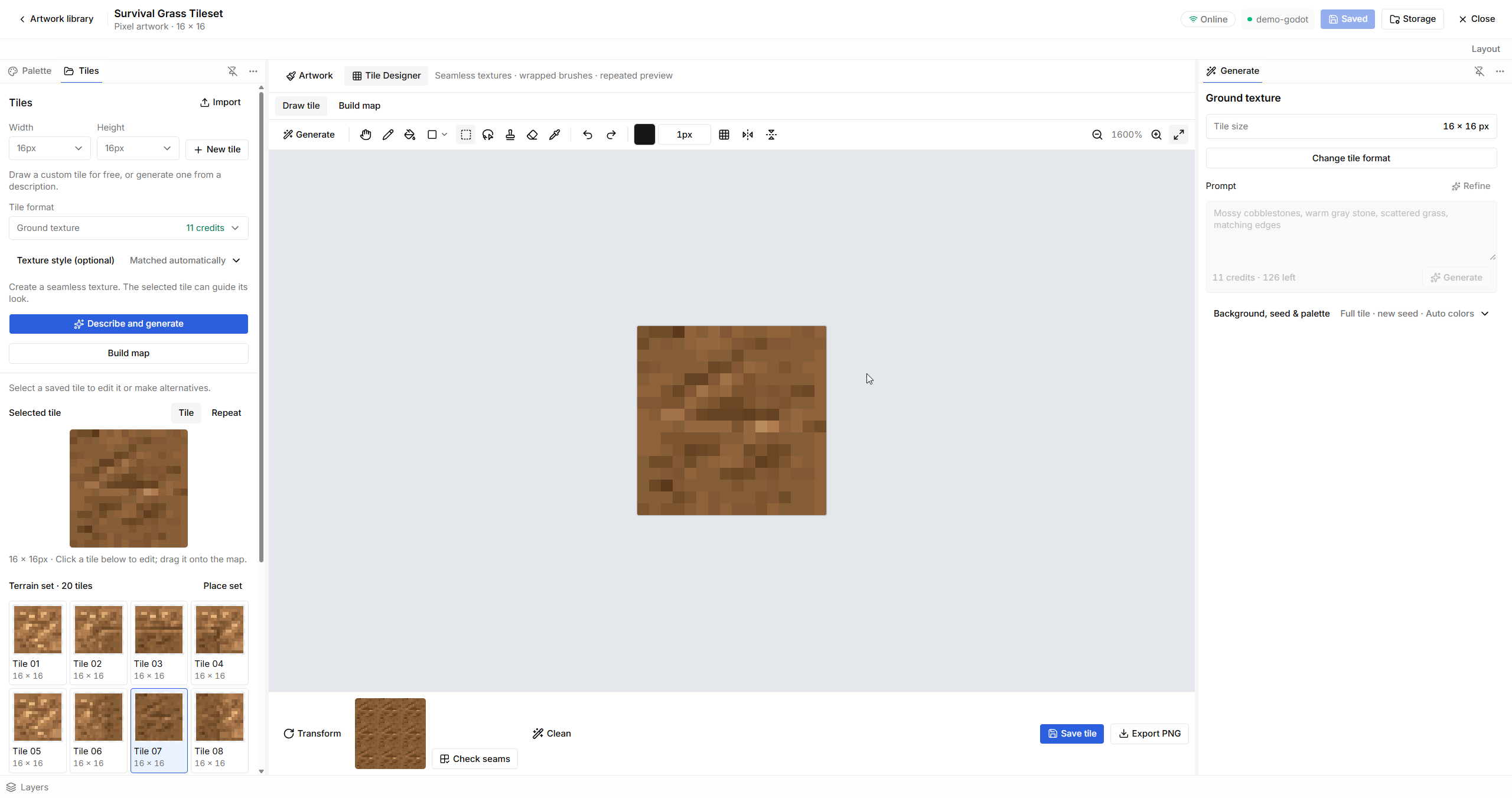
- Switch to Tile Designer.
- Choose a saved tile or select New tile.
- Draw on the tile canvas, or use Describe and generate for new tile art.
- Use Check seams and the repeat preview to inspect the edges.
- Choose Save tile to keep the edit.
- Open Build map to arrange tiles into a map.
For repeating terrain, keep lighting even and avoid a strong focal point in every tile. Inspect a larger repeated area to catch visible grids and seams. Tile generation uses credits; drawing, saving, and arranging tiles do not.
Export and use in Godot
Use Export PNG for a still image and the timeline's Export controls for animation output. Review the selected clip and export settings before saving.
Where Add to Godot is available, it copies the artwork into the selected project for use by your scene. You can also import exported files through Godot's normal asset workflow. Your connected assistant can help place the art and configure sprite animation.
Keep artwork and gameplay separate: a sprite does not create collision, navigation, interaction, or character movement on its own.
Credits and offline use
Drawing, local editing, rigging, timeline playback, cleanup, and export do not use generation credits. AI generation and AI edits show their cost in the app. Pro includes starter generation credits; current top-up packs and prices are shown in your account.
Local artwork remains available offline. AI generation needs an internet connection.
Saved files and privacy
The artwork you save to your local library stays on your computer until you delete it. Online generation results are available for seven days, so save the results you want to keep. Download links are temporary and can be refreshed while a result is still available.
A generation uses the prompt and selected images or masks needed for that request. Your Godot scenes, scripts, and whole project are not uploaded by Image Studio. Temporary uploaded files and results are removed when they expire. See Security & privacy for account and diagnostic settings.